Reset WordPress Admin Password Using WP-CLI
💡 Quick Summary (TL;DR):
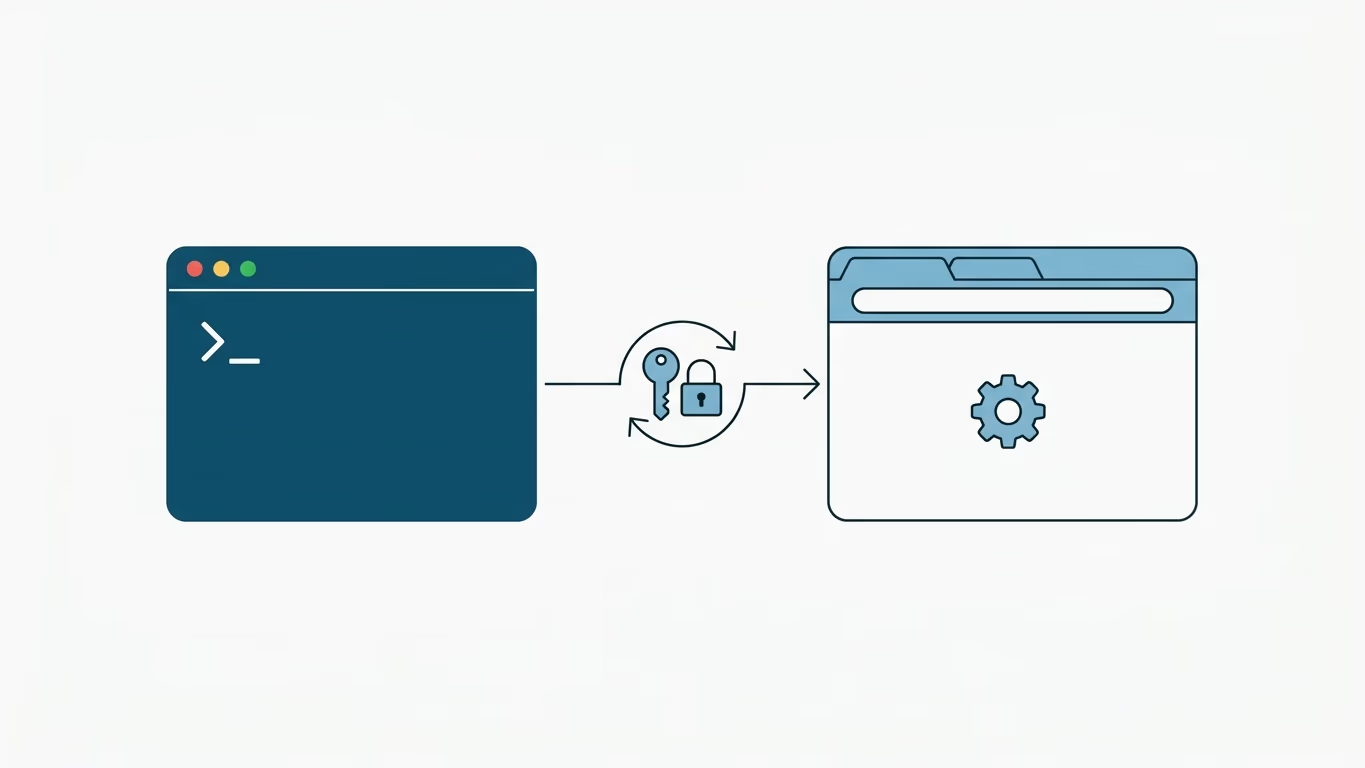
- Objective: Reset a lost WordPress administrator password directly from the server terminal using WP-CLI.
- Key Commands: Use
wp user listto find the target admin's ID, then runwp user update <ID> --user_pass="<new_password>".- Gotcha: If running as the
rootuser, you must append--allow-rootto the commands or run them as the web server user (sudo -u www-data).
Misplacing or overlooking a WordPress administrator password is a common challenge for developers and site administrators. While the standard email recovery flow works, it can be slow or fail entirely if your server's mail system (SMTP) is not configured.
Using WP-CLI, a powerful command-line interface for WordPress, you can bypass the email recovery process and reset any user password instantly directly from your server's console.
WordPress Admin Password Reset Methods Comparison
| Method | Access Needed | Speed | Risk / Difficulty | Recommended For |
|---|---|---|---|---|
| WP-CLI | SSH Access to Server | Instant | Low (Command-line) | Developers & Server Admins |
| phpMyAdmin / MySQL | Database Access | Fast | Medium (Requires MD5 hashing) | Hosting panel users |
| Email Reset | Email Inbox Access | Slow | Low (Standard flow) | Client users |
| wp-config.php Edit | FTP / File Access | Fast | High (Involves editing code) | Emergencies (no DB/SSH access) |
Step 1 — Locate Your WordPress Installation
Log in to your server via SSH and navigate to the directory where your WordPress site is installed:
cd /var/www/my-website/
(Replace /var/www/my-website/ with the actual path to your WordPress root directory).
Step 2 — Find the Target User ID
To update a user, you first need their unique ID or username. List all registered users on your site by running:
wp user list
⚠️ The Root User Gotcha
If you are logged in to your server as root (which is common on VPS environments), WP-CLI will block execution by default for security reasons. You will see an error. To bypass this, either run the command as the web server user (www-data on Ubuntu/Debian):
sudo -u www-data wp user list
Or append the --allow-root flag to your command:
wp user list --allow-root
Identify the ID of the administrator account you want to modify (usually 1 for the initial administrator, but verify this from the table output).
Step 3 — Update the Password
Run the update command below. Replace [USER_ID] with the actual ID you found in Step 2, and [NEW_SECURE_PASSWORD] with your new password:
wp user update [USER_ID] --user_pass="[NEW_SECURE_PASSWORD]" --allow-root
For example, to update user ID 1 with a secure random password:
wp user update 1 --user_pass="y8#K9$qP2!mZ" --allow-root
🔒 Security Best Practice
Typing passwords directly in a shell command logs them into your system's shell history (~/.bash_history). To prevent unauthorized users with server access from reading your new password, clear your shell history immediately after the command:
history -c
Step 4 — Verify the Changes
Once completed, open your web browser and navigate to your WordPress admin panel (e.g., https://yoursite.com/wp-admin).
Attempt to log in with your username and the newly configured password. If you can access the dashboard, the password has been successfully reset.